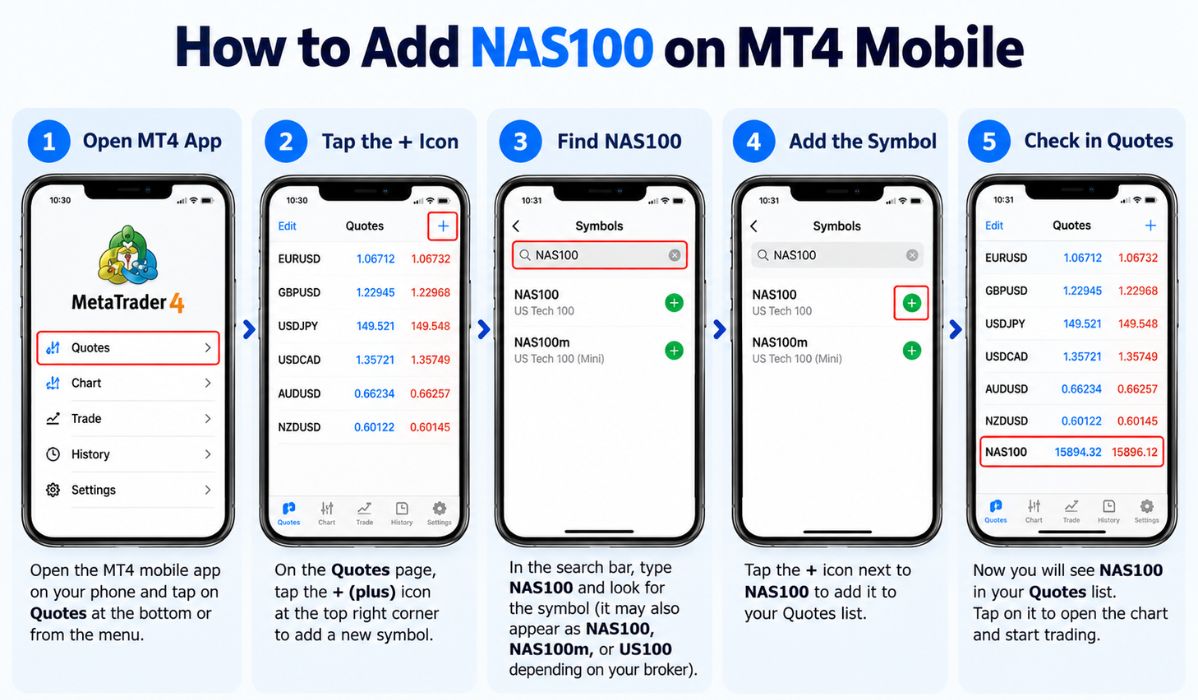
If you want to learn how to add NAS100 on MT4 Mobile, the first thing to understand is that the symbol may not appear under the exact name “NAS100” on every trading account. NAS100 is a commonly used name for a Nasdaq-100 index trading instrument, often offered through a broker as a contract for difference (CFD). Depending on your broker, you may see a different symbol, such as US100, USTEC, or NAS100 with a suffix.
MetaTrader 4 (MT4) allows users to view market quotes, analyse price charts, and manage supported trading instruments from an Android phone or iPhone. However, the instruments available in the app depend on the broker and the trading account you use. If your broker supports the Nasdaq-100 instrument on MT4, you can usually add it through the Quotes section.
This guide explains how to find NAS100 on MT4 Mobile, add the correct symbol to your watchlist, open its chart, and resolve common problems if the instrument does not appear.
What Is NAS100 in MT4?
NAS100 generally refers to a trading instrument that tracks the Nasdaq-100 Index, which represents 100 of the largest non-financial companies listed on the Nasdaq Stock Market, subject to the index’s eligibility and weighting rules.
In retail trading, brokers commonly offer exposure to the Nasdaq-100 through CFDs or other derivative products. These instruments allow eligible clients to speculate on price movements without necessarily owning the underlying shares.
It is important to understand that the Nasdaq-100 index itself and a broker’s NAS100 trading instrument are not the same thing. The broker determines the instrument’s symbol, contract specifications, trading hours, spreads, margin requirements, and available order types.
How to Add NAS100 on MT4 Mobile
You can add a supported NAS100 instrument to the Quotes list in MT4 Mobile. The steps are similar on Android and iPhone, although some menu labels and screen layouts may differ slightly.
Step 1: Open the MT4 Mobile App
Open the MetaTrader 4 app on your Android phone or iPhone and sign in to your trading account.
Make sure you are connected to the correct broker server. If you use accounts with different brokers, remember that each account may offer a different selection of trading instruments.
Once you have signed in, open the Quotes tab. This section displays the instruments currently available in your watchlist, along with their latest available bid and ask prices.
Step 2: Tap the Plus (+) Icon
Look for the plus (+) icon, usually located in the upper-right corner of the Quotes screen.
Tap it to open the list of instruments that your broker makes available through the MT4 server.
You may see categories such as Forex, indices, metals, or other financial instruments. The exact categories depend on your broker’s configuration.
Step 3: Search for NAS100 or an Alternative Symbol
Look through the available instrument categories and search for NAS100 if a search field is provided. If you cannot find it, check the indices category and look for alternative names used by your broker.
Possible names include:
- NAS100
- US100
- USTEC
- NAS100 followed by a broker-specific suffix
These are examples, not guaranteed equivalents on every platform. Before adding an alternative, confirm that the instrument’s description and contract specifications identify it as the Nasdaq-100 or the product you intend to follow.
Some MT4 versions display a list of instruments rather than providing a universal search field. If that happens, browse the relevant categories instead of assuming that the instrument is unavailable.
Step 4: Add the Correct NAS100 Symbol
When you find the appropriate instrument, tap the plus (+) icon beside its name or select it using the controls shown in your version of the app.
The symbol should then appear in your Quotes list. On some versions, you may need to return to the previous screen to see the updated list.
Check the full symbol name carefully. For example, a broker may offer different NAS100 instruments for different account types. Choosing the correct one helps you avoid confusing instruments with different contract conditions.
Step 5: Open the NAS100 Chart
Return to the Quotes tab and locate the newly added instrument.
Tap the NAS100 symbol or open its context menu, depending on your app version. Choose the chart option to view its price movements.
You can now inspect the available chart timeframes, such as M1, M5, M15, M30, H1, H4, D1, W1, and MN. These represent one minute, five minutes, fifteen minutes, thirty minutes, one hour, four hours, one day, one week, and one month, respectively.
MT4 Mobile also supports chart types such as candlesticks, bars, and line charts. You can use these tools to review price action and apply the technical indicators available in the app.
Keep in mind that adding a symbol to Quotes only makes it available for viewing in the app. It does not automatically open a trade or guarantee that the instrument is currently tradable.
How to Add NAS100 on MT4 Mobile on Android and iPhone
Although the basic process is similar on both devices, a few interface details may differ.
On Android
Open MT4 and go to Quotes. Tap the plus (+) icon in the top-right corner, browse the available instrument categories, and locate the NAS100 symbol or its verified broker-specific equivalent. Tap the symbol to add it, then return to Quotes to check that it appears in the list.
On iPhone
Open the MT4 app and select Quotes. Tap the plus (+) icon in the upper-right corner to access the available instruments. Browse the categories or use the search field if your version provides one. Tap the plus icon beside the correct instrument, then return to Quotes and open its chart.
The exact interface can vary slightly by app version and broker. If the symbol is not listed, the next step is to check whether your broker offers it on your particular MT4 account.
Why Is NAS100 Not Showing on MT4 Mobile?
If you cannot find NAS100, it does not necessarily mean that your MT4 app is faulty. The issue may relate to the broker, account type, symbol naming, or platform availability.
1. Your Broker Does Not Offer NAS100 on MT4
Not every broker provides every index instrument through every platform. A broker may offer Nasdaq-100 exposure on MT5 or another trading platform without making the same instrument available on MT4.
Check your broker’s official instrument list or contact its support team to confirm that the Nasdaq-100 instrument is available for your account.
2. The Symbol Has a Different Name
One of the most common reasons for not finding NAS100 is that the broker uses a different symbol name. Search for alternatives such as US100 or USTEC, but verify the instrument description before adding one.
Do not assume that two symbols represent identical contracts simply because their names look similar.
3. You Are Logged In to the Wrong Account
If you have multiple accounts, you may be connected to a server that does not provide the instrument you want.
Check your account details and server name. If necessary, switch to the correct account using the account management options in MT4 Mobile.
4. The Instrument Is Not Available for Your Account Type
Some brokers restrict instruments according to account type, jurisdiction, or other eligibility requirements.
Even if the broker advertises NAS100, that does not guarantee that it will be available on every account. Ask the broker to confirm whether your specific account can access the instrument.
5. The App Is Not Receiving Current Quotes
If NAS100 appears in Quotes but its prices are missing or not updating, check your internet connection and account connection status.
Also, consider whether the instrument is outside its broker-defined trading session. Some instruments have daily breaks, weekend closures, or other trading-hour restrictions.
If the problem continues, contact your broker to check the instrument’s status and the server connection.
How to Check NAS100 Trading Conditions Before Placing an Order
After adding NAS100 on MT4 Mobile, take a moment to review the instrument’s trading conditions before considering a position.
The displayed symbol name alone does not tell you how much a price movement will affect your account. Check the following details in your broker’s documentation or instrument specifications:
- Contract size: The quantity or exposure represented by one lot.
- Minimum trade volume: The smallest position size permitted by the broker.
- Spread: The difference between the bid and ask prices.
- Margin requirement: The funds required to open and maintain a position.
- Trading hours: When the instrument can be traded on the broker’s server.
- Stop-loss and take-profit rules: The conditions under which your orders may be executed.
- Overnight financing: Any applicable charges for holding a position beyond the trading day.
These conditions can differ between brokers and account types. Do not rely on figures from another broker when calculating your potential risk.
Can You Trade NAS100 Directly on MT4 Mobile?
Yes, if your broker offers a supported NAS100 instrument on MT4, your account is eligible to trade it, and trading is currently permitted.
To open an order, select the instrument in Quotes and access its trading options. Review the order volume and available execution settings before submitting a buy or sell order.
If you use a stop-loss or take-profit level, check that the values are correct before confirming the order. Also, make sure you understand the difference between monitoring an index chart and trading a derivative based on that index.
NAS100 CFDs and similar leveraged products can produce substantial losses as well as gains. Leverage increases exposure relative to the funds deposited, so a relatively small market movement can have a significant effect on your account balance.
If you are learning how the platform works, consider practising on a demo account before using real money.
Learning how to add NAS100 on MT4 Mobile is straightforward when your broker supports the instrument. Open Quotes, tap the plus (+) icon, search the available categories, and add the correct symbol to your watchlist. You can then open its chart and review price movements directly from your phone.
If NAS100 does not appear, check for alternative symbol names and confirm that the instrument is available on your broker’s MT4 server. Before placing a trade, review the contract specifications, trading hours, spread, margin requirements, and potential risks.
The key is to verify the instrument with your broker rather than assuming that every MT4 account offers the same Nasdaq-100 symbol.
Frequently Asked Questions
Can I add NAS100 to MT4 Mobile without a broker account?
You can install MT4 and explore its interface, but access to a broker’s live trading instruments and prices generally requires a connection to a supported trading server. The availability of NAS100 depends on the broker and account.
Why can I find NAS100 on MT5 but not MT4?
Your broker may offer the instrument on MT5 but not on MT4. Instrument availability is determined by the broker’s platform and server configuration, not simply by the name of the trading application.
Is NAS100 the same as US100?
These names are often used for instruments tracking the Nasdaq-100, but they are not universally interchangeable. Check the instrument description and contract specifications supplied by your broker.
Can I add NAS100 on MT4 Mobile on an iPhone?
Yes, if your broker makes the instrument available on MT4 for your account. Open Quotes, tap the plus (+) icon, find the appropriate symbol, and add it to your watchlist.
What should I do if NAS100 is missing from the symbol list?
Check the available instrument categories and search for verified alternative names. If the instrument is still missing, confirm with your broker that it is supported on MT4 for your account type.
Does adding NAS100 to MT4 Mobile automatically start trading?
No. Adding the symbol places it in your Quotes list so you can monitor its prices and open its chart. You must separately submit an order to open a position, subject to your broker’s trading conditions.